🧭 Space managers
Run problem reports in your Space (managers)
Who is a manager #
Managers handle every report in the Space and set up the team. You are a manager when you are:
- the Space owner, or a Space admin (automatic), or
- given the role Reports manager in Team & roles.
| Role | Can do |
|---|---|
| Reports manager | everything: all reports, triage, assign, Team & roles, LPA / ITA summary, publish |
| Reports staff | reports of their department and reports assigned to them; the LPA / ITA summary |
| Member | report, follow, me too, rate |
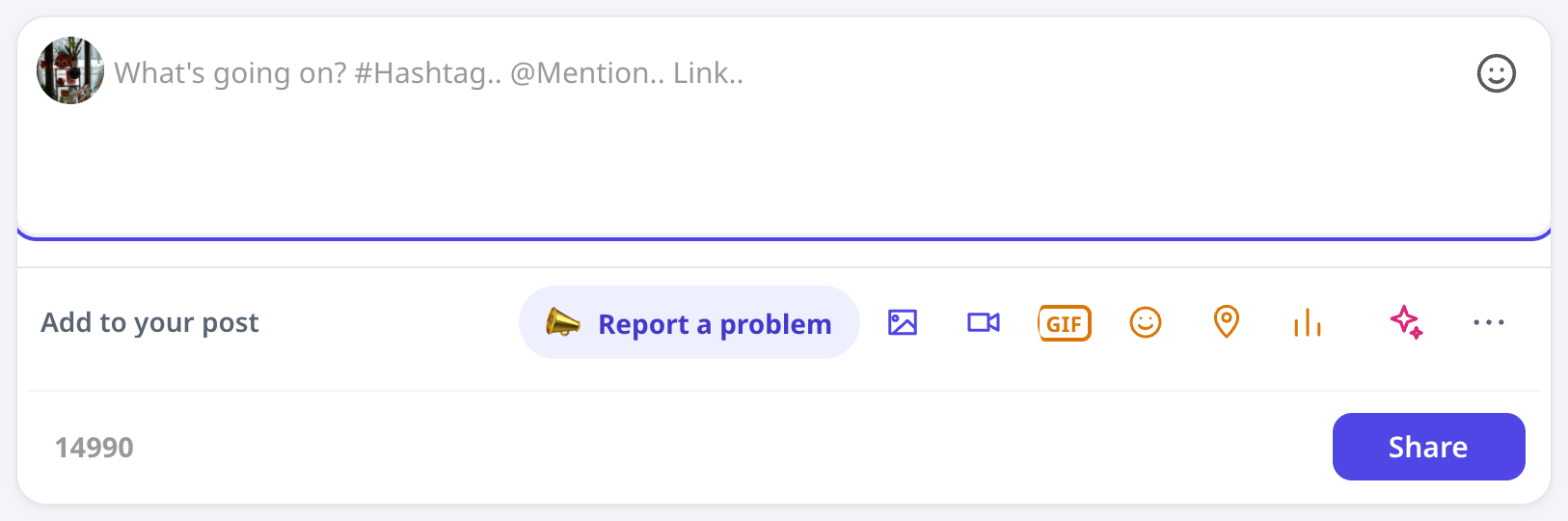
In the Space's post box (tap More), managers see four buttons: 📣 Report a problem, 📋 Plaazaa Report (board), 📊 LPA / ITA summary and 👥 Team & roles.
Team & roles #
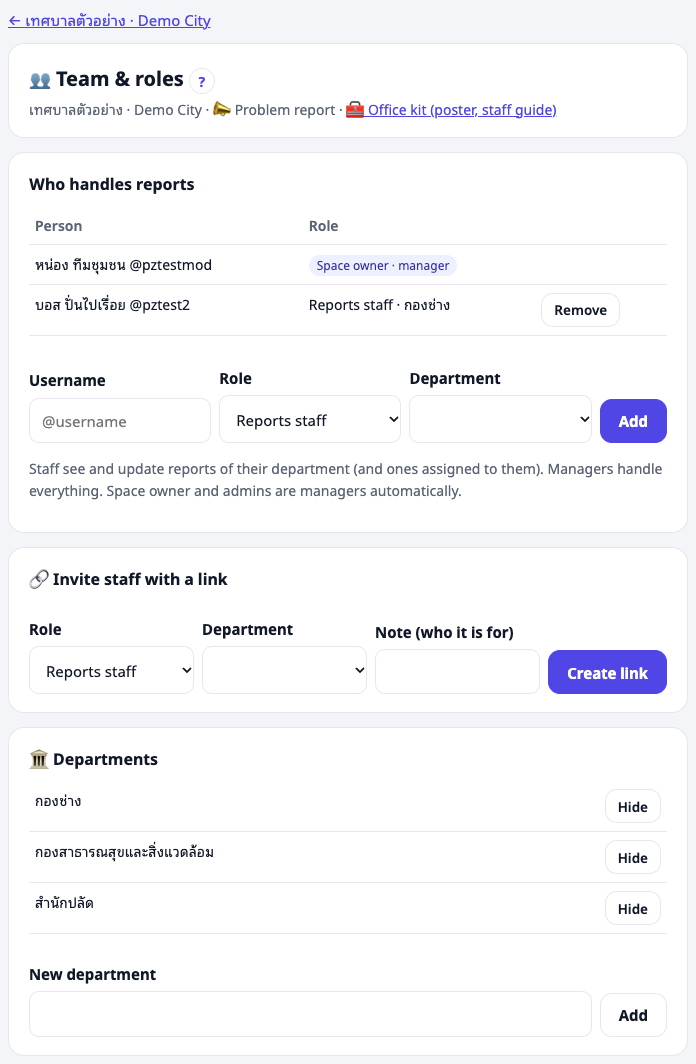
Open 👥 Team & roles. The page shows who handles reports: Space owner and admins (managers automatically), and every granted role with its department.
- Add a person: enter their username, choose the role (staff need a department) and press Add.
- Remove: press Remove on their row.
Every change is logged.
Invite staff with a link #
When you do not know someone's username, create an invite link:
- Choose the role and department, add a note (for example "Somchai, Public works").
- Press Create link and copy it now — it is shown only once.
- Send it by LINE or email. It works for one person within 7 days.
The list shows each link: waiting, used (by whom), expired or cancelled. You can cancel a waiting link.
Departments #
Add the office's departments (กอง / ฝ่าย), for example Public works, Public health, Office of the clerk. Staff belong to one department and see its reports. You can hide a department that is no longer used; old reports keep it.
Triage: give each report a department #
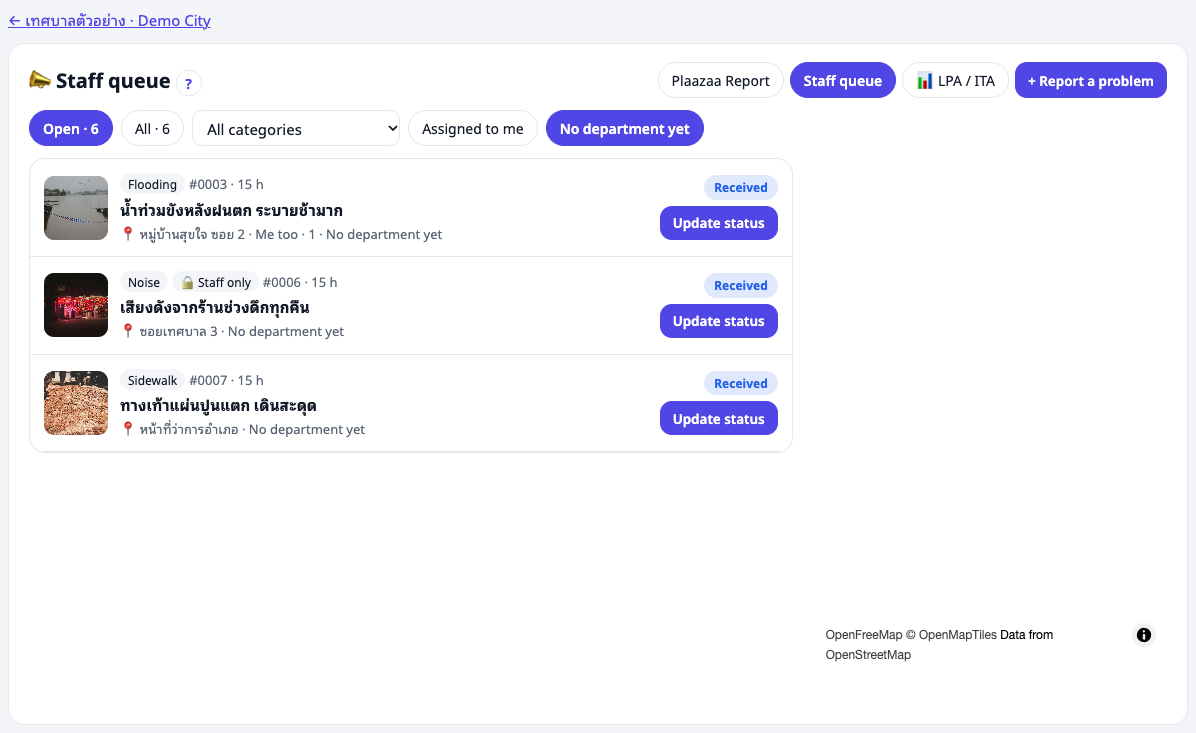
New reports have no department. Only managers see them first. In the Staff queue, filter No department yet, open Update status and choose the department — staff of that department then see it and get to work. You can reply to the reporter at the same time ("Received, sent to Public works").
Assign to a person #
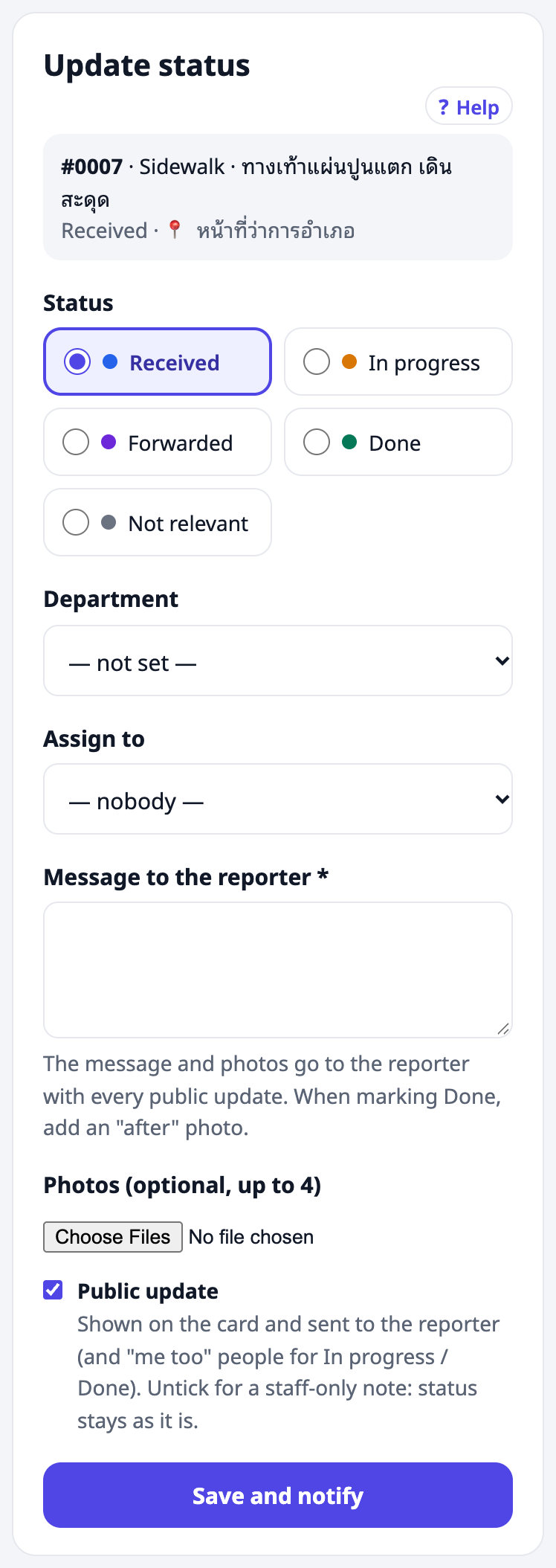
In Update status, managers also see Assign to. The person is notified ("Assigned to you") and can update the report even if it is outside their department. They find it under Assigned to me.
Office kit: poster and staff guide #
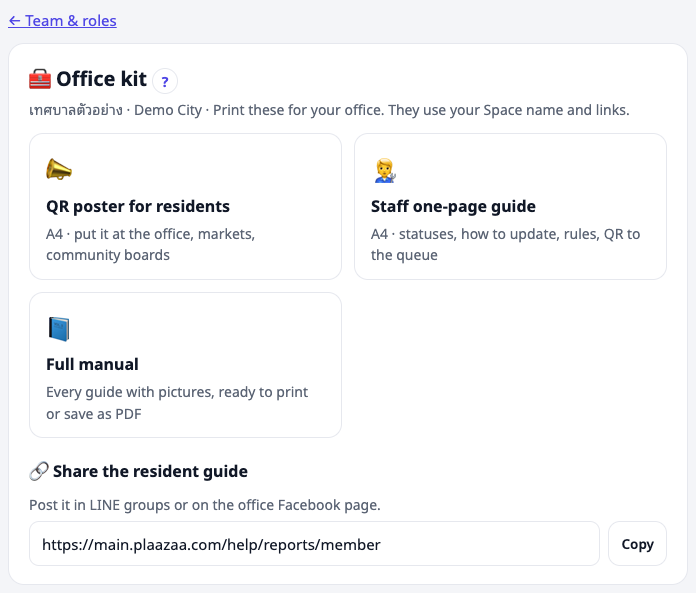
From Team & roles, open 🧰 Office kit:
- QR poster for residents — A4, with your Space name and logo, three steps, your categories and a QR code to the Space. Put it at the office, markets and community boards.
- Staff one-page guide — A4: statuses, how to update, rules, a QR code to the staff queue.
- Full manual — this help, every guide with pictures, ready to print or save as PDF.
- A link to the resident guide to share in LINE groups or on the office Facebook page.
Print from the browser (A4) or choose "Save as PDF".
Settings the Plaazaa team sets for you #
Some settings are set when the Space is opened. Ask the Plaazaa team to change them:
| Setting | Default |
|---|---|
| Categories used in the Space | the 14 standard categories |
| Sensitive categories (Corruption, Drugs — always staff-only) | off |
| Reminder after no staff update | 48 hours |
| Reporter can reopen after Done | 7 days |
| Distance for "already reported?" | 100 m |
| Pilot line on the Space | set during a pilot |
⚠️ A Corruption category here helps residents, but ITA items o16–o18 ask for a corruption-complaint channel separate from general complaints. Keep your official channel for those.
Good habits #
- Reply to every new report within one working day, even if the fix takes longer.
- Use Forwarded honestly — say who has it now.
- Always close with an after photo.
- Look at the board's numbers each month: open reports, days to fix, satisfaction.
Questions #
A staff member left. Remove their role in Team & roles. Their past updates stay on the reports.
A report is in the wrong department. Open Update status and change the department.
Someone posted something that is not a problem. Mark it Not relevant with a reason, or delete the post if it breaks the Space's rules.