🧑🔧 Staff
Handle problem reports (staff)
Your job in one minute #
Residents report problems with a photo and a pin. You receive them, update them while you work, and close them with an after photo. Every public update is sent to the reporter at once — that is what makes residents trust the office.
- Open the Staff queue every working day.
- Reply to new reports quickly (even "received, we will check tomorrow").
- Keep the status and stage honest while you work.
- Mark Done with an after photo from the same angle.
Get started #
A Space manager gives you the role Reports staff with your department (for example Public works). Two ways:
- they add your username in Team & roles, or
- they send you a one-time invite link. Open it, sign in (Continue with IDUnify) and press Accept. The link works once, for 7 days.
You see and update reports of your department and reports assigned to you. Managers see everything.
The staff queue #
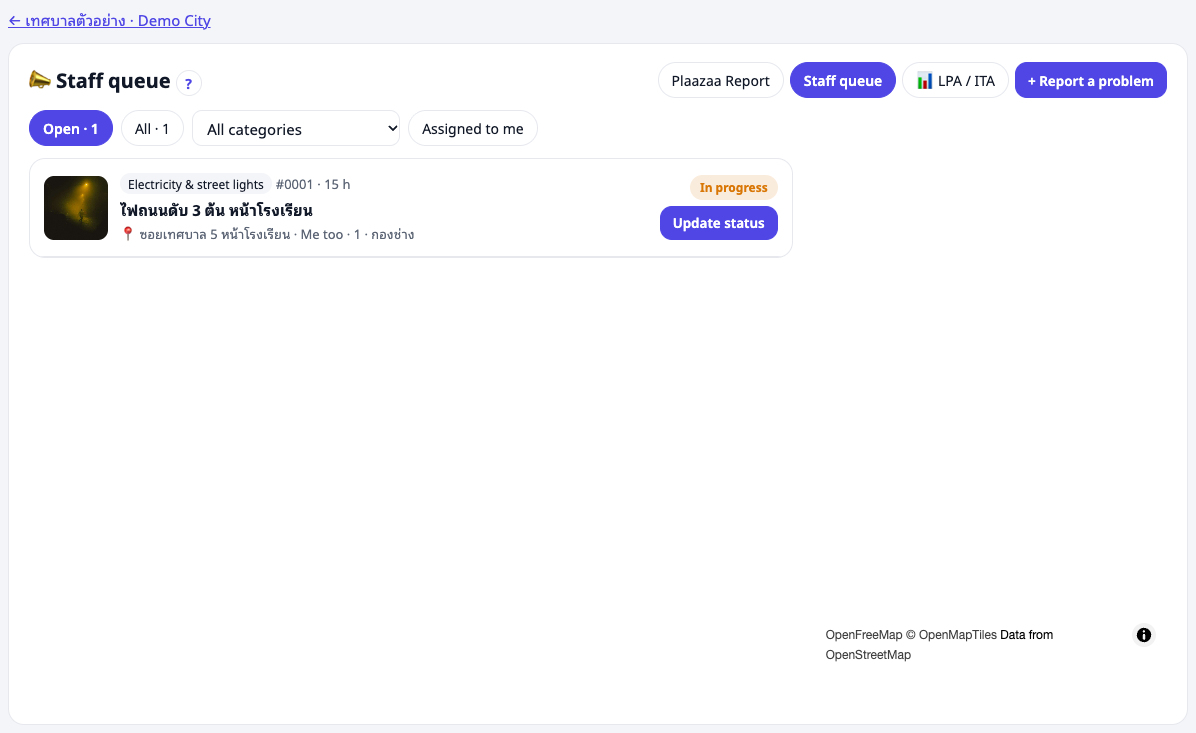
Open the Space's reports board and choose Staff queue (or the 📋 button in the Space's post box). The queue shows only reports you can update that are still open, in this order:
- reports where the reporter asked for an update,
- reports with no staff update for 48 hours,
- then the oldest first.
Filters: Assigned to me, and for managers No department yet.
Quick status from the list #
In the Space, open 📣 Report in ☰ List or ≡ Compact view. On every report you may update there is a status button:
- In progress — one tap. The reporter gets the usual notification with a short standard note.
- Forwarded… / Done… / Not relevant… — opens the Update status form with that status chosen (forward target, after photo, note). Done asks for an after photo; 📷✕ marks reports done without one.
- Select several with the tick boxes, then Set all to In progress (after a site visit, for example).
- 🔗 Same problem as… (type a number like
#0031) or ✂ Not the same problem fixes the ⊞ Group: Same problem view; ↺ Let Plaazaa decide again undoes it.
Managers also see ⚠ late reports in the group headers and in the home-feed line for their Space, and can pin up to 3 posts as 📌 Pinned (post menu ⋯ → Pin).
Update a report #
Press Update status on the card or in the queue. In the form:
- Status — Received, In progress, Forwarded, Done or Not relevant.
- Stage (when in progress) — Fixing now, Studying the problem, Making a plan, Requesting budget, Procurement, Legal process.
- Message to the reporter — required. Short and polite: what you did, what happens next, when.
- Photos — optional, up to 4. When marking Done, add an after photo.
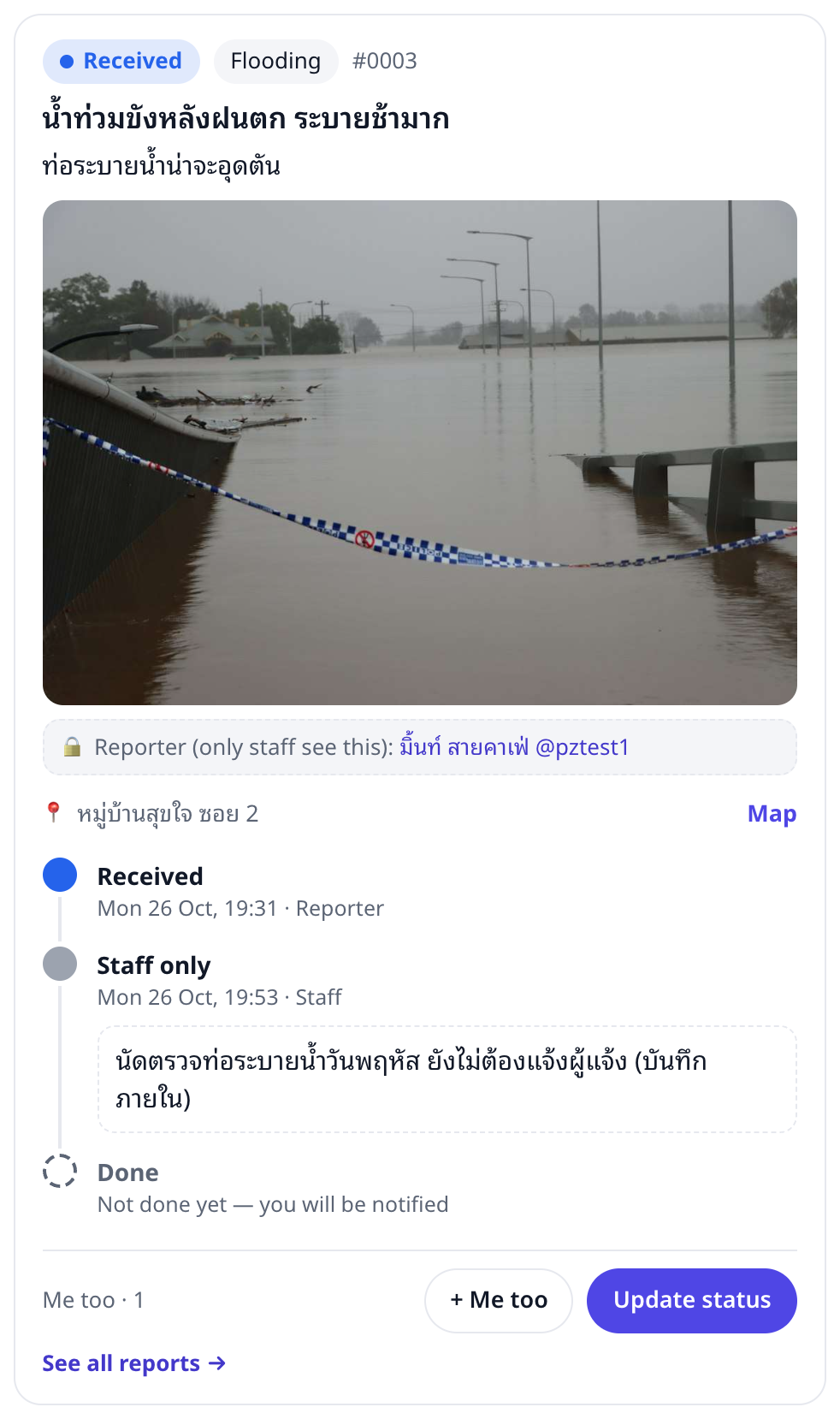
- Public update — ticked = shown on the card and sent to the reporter. Untick for a staff-only note (see below).
- Press Save and notify.
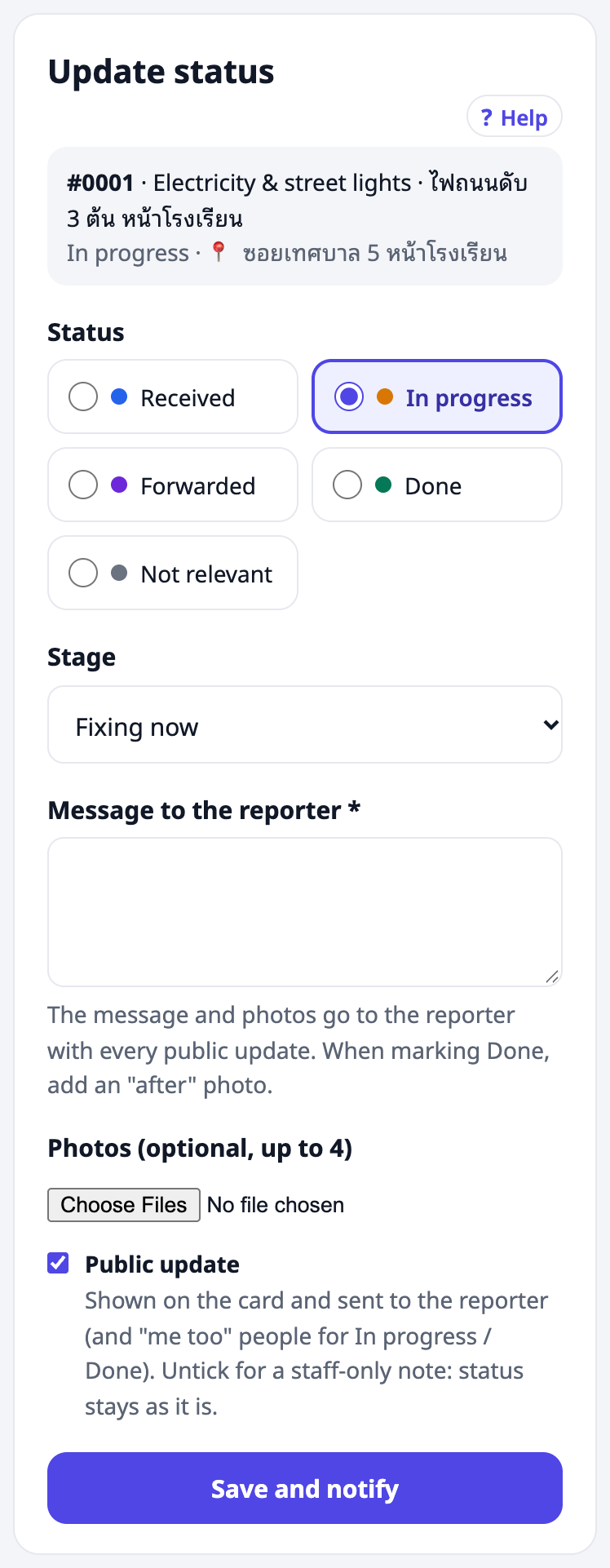
People who pressed Me too are also notified when the report goes In progress or Done.
What each status means #
| Status | Use it when |
|---|---|
| Received | New report — nobody has replied yet. Do not leave reports here long. |
| In progress | Someone is working on it. Pick the stage so the reporter understands slow cases (budget, procurement). |
| Forwarded | It belongs to another office. Write who it went to and how (phone, LINE, official letter…). |
| Done | Fixed. Add an after photo. The reporter can rate, confirm, or reopen within 7 days. |
| Not relevant | Not a real problem, a duplicate, or outside the office's powers. Always explain why. |
Forward to another office #
Choose Forwarded, fill in Forwarded to (for example "Provincial Electricity Authority, Song Phi Nong") and How (Phone, LINE, Facebook, Official letter, Email, In person, Other). The card shows it to the reporter. Forwarded reports are not sent reminders — they are with the other office.
Staff-only notes #
Untick Public update to write a note only staff can read — for example "contractor booked for Tuesday". The status does not change and nobody is notified. Residents never see these notes.
Done: before and after #
Take the after photo from the same place and angle as the reporter's photo. The card then shows Before / After side by side — this is also the office's evidence for LPA indicator 30.
Staff-only (private) reports #
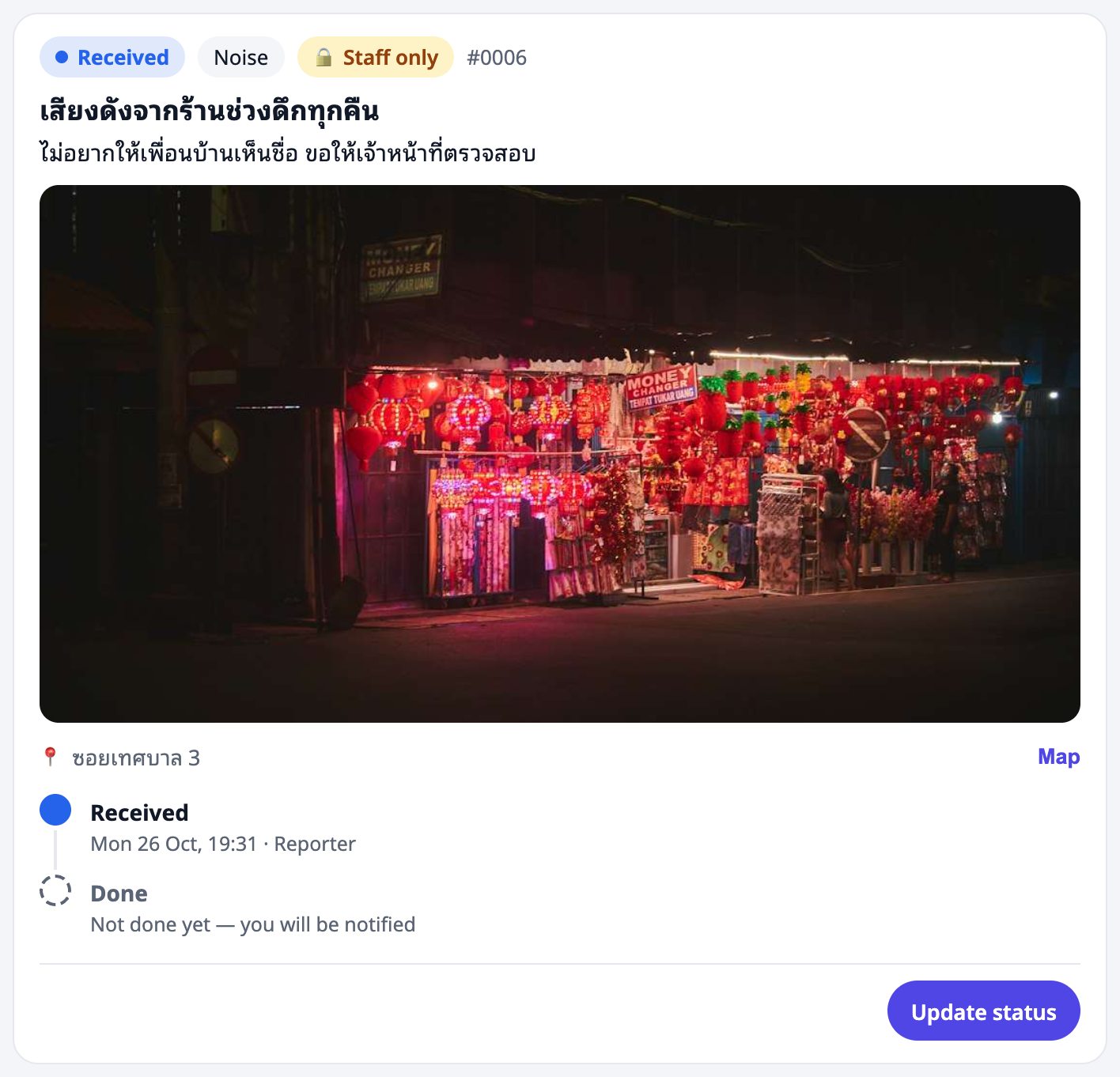
Some reports are private to the office — the reporter chose "Send to staff only", or the category is sensitive (Corruption, Drugs). They:
- are in your queue with a 🔒 Staff only chip,
- open on their own page (not in the Space feed),
- are seen only by the reporter and the staff who can update them.
🔒 Never copy, forward or talk about private reports outside the team.
Hidden-name reports #
When a reporter hides their name, members see "ผู้แจ้ง (ไม่ระบุชื่อ)". You see the real person in the line 🔒 Reporter (only staff see this) so you can contact them. Keep it private.
Reminders and notifications #
- Assigned to you — a manager assigned a report to you.
- No update for 48 hours — please check — an open report (Received or In progress) had no staff update for 48 hours. The reminder is sent once per 48 hours.
- The reporter asked for an update — the reporter pressed the button (they can once a day). Reply with a public update.
Questions #
I cannot press Update status. The report is not in your department and not assigned to you. Ask a manager to set the department or assign it.
I made a mistake in an update. Add another update that corrects it. The timeline keeps the history.
The reporter reopened the report. It goes back to In progress. Read their message, fix what is left, and mark Done again with a new photo.