✍️ Staff who draft
Announce for staff who draft
Who this is for #
You work in the office and have a role in the Space (for example reports staff), but you are not an Announce manager. In Announce you are a drafter: you write announcements, and a manager checks and publishes them. Nothing you write reaches residents until a manager presses Publish.
💡 Space owners, Space admins and people with the
announce_managerrole are managers. They publish. Read the Manager guide if that is you.
What you can and cannot do #
| You | |
|---|---|
| Open the Announce tab and the Home card | yes |
| Write a draft of any kind: neighbourhood status, office status, warning, general announcement, Mayor Talk | yes |
| Pick any level in a draft, Info, Important or Urgent | yes, as a draft |
| Publish an announcement | no, a manager does |
| Send an Urgent warning | no, it is locked (🔒). Only the owner, admins and announce managers send Urgent. You draft it for them. |
| Approve a Mayor Talk | no, only the mayor |
| Edit or delete your own draft, until it is published | yes |
| Edit, delete or mark over a published announcement | no, managers only |
| See Seen by N and N acknowledged | no, managers only |
| Change Announce settings | no |
Where your drafts are #
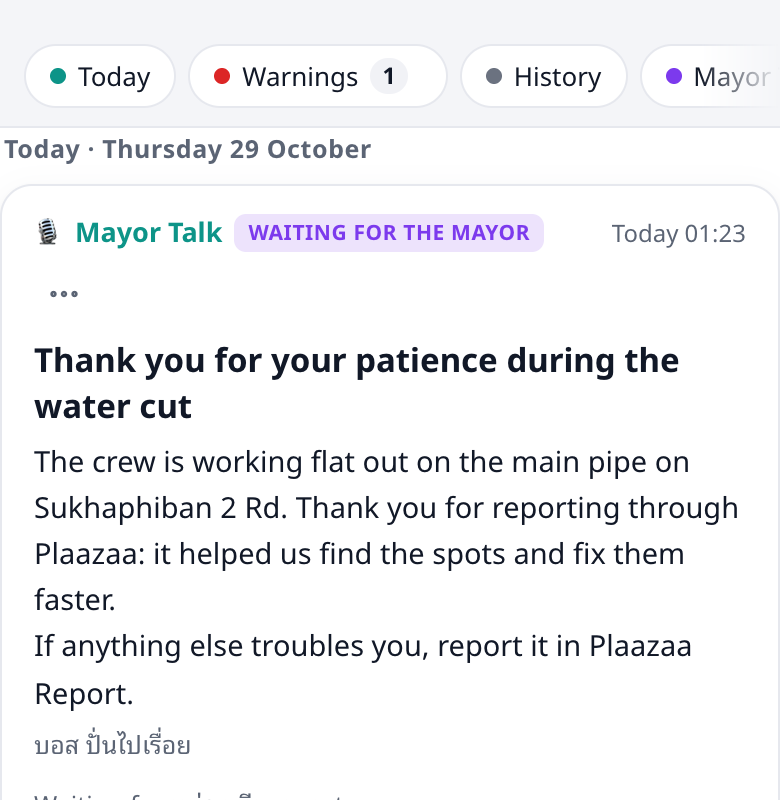
In the Announce tab you see the normal chips Today · Warnings · History · Mayor Talk and an extra chip, Drafts. In Drafts you see only your own drafts (managers see everyone's), each with a Draft badge, or Waiting for the mayor for a Mayor Talk. Use the ⋯ menu on a draft to Edit or Delete it.
The ? in the tab menu opens this guide.
Write and save a draft #
- In the Announce tab press + New announcement.
- Pick the kind: 🏘 Neighbourhood status, 🏢 Office status, ⚠️ Warning, 📢 Announcement or 🎙 Mayor Talk.
- For a daily status, tick ✓ Normal or ⚠ Problem on each line and write a short detail only where something changed. The lines are filled from what Plaazaa already knows (Weather, Reports, Events, Space info) and carry a small tag such as from Weather. Check every line.
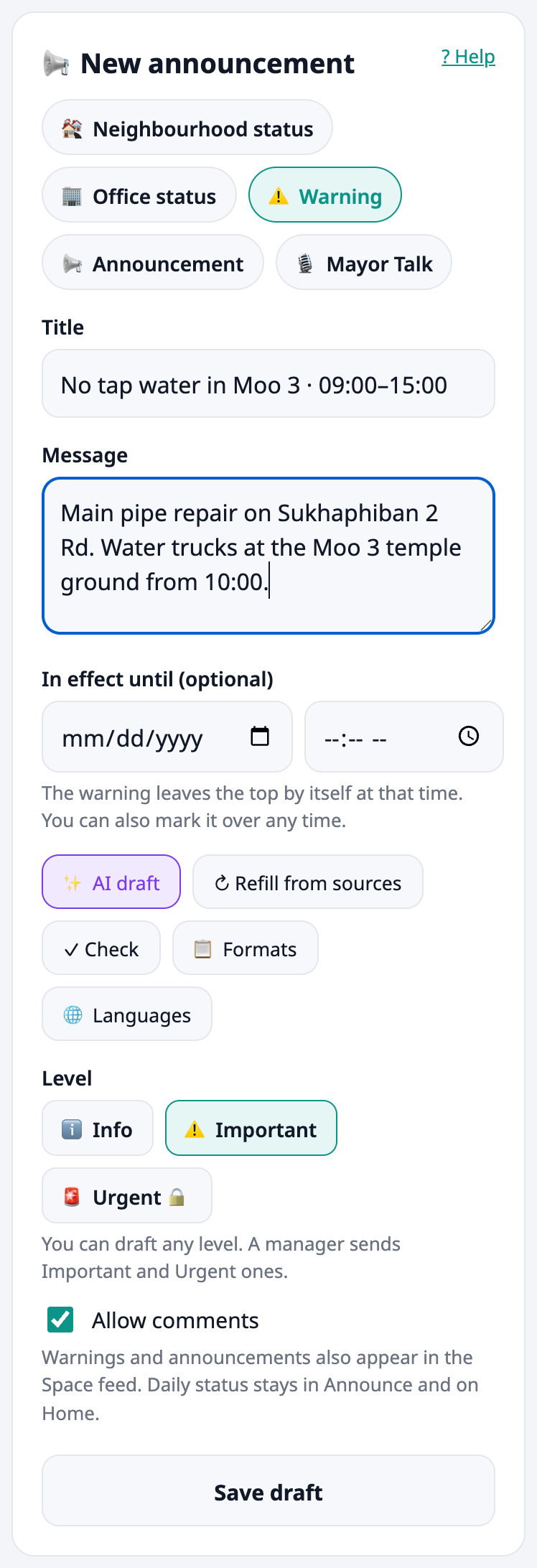
- For a warning or announcement, write a title and a message, and pick the level. You can also use ✓ Check: it lists what may be missing (date, time, area, a phone number, vague words). It is only a hint.
- Press Save draft.
- A draft of a daily status replaces your earlier draft for the same day: there is one draft per kind per day.
- Nobody is notified while it is a draft.
- Drafts are seen only by you and by the managers.
Urgent is locked #
If a warning is serious, you still write it and choose 🚨 Urgent. The level shows a lock and the Publish button is not there; Save draft is. A manager sees it in their Drafts chip, checks it and sends it, because an Urgent warning shows a red banner and notifies every member. This is on purpose: someone with authority sends it.
💡 If it is an emergency, tell a manager directly too. Your draft saves them the typing.
How you learn it was published #
Plaazaa does not send you a separate "published" message. You see it like this:
- Your draft leaves your Drafts chip and appears in Today, Warnings or History, with your name as the sender.
- If it is Important or Urgent, you get the same notification as every member, because you are a member of the Space.
- A published Mayor Talk shows in the Mayor Talk chip as Mayor · sent by the office.
- If it is still in Drafts after a while, a manager has not looked at it yet. Ask them.
Example: the water cut, as the drafter #
You hear at 08:15 that tap water in Moo 3 will be off from 09:00 to 15:00.
- + New announcement → ⚠️ Warning.
- Title: No tap water in Moo 3 · 09:00–15:00. Message: where the repair is, where water trucks will be, when it should be back. Always give the area and the time.
- Choose 🚨 Urgent. It is locked for you and saved as a draft. Press Save draft.
- Tell the manager. They open Drafts, check, and press Publish. Residents get the banner and the notification.
- Later the manager marks it over. You can see it in Warnings with the Over badge.
Example: Mayor Talk, as the drafter #
After the water cut the mayor wants to thank residents.
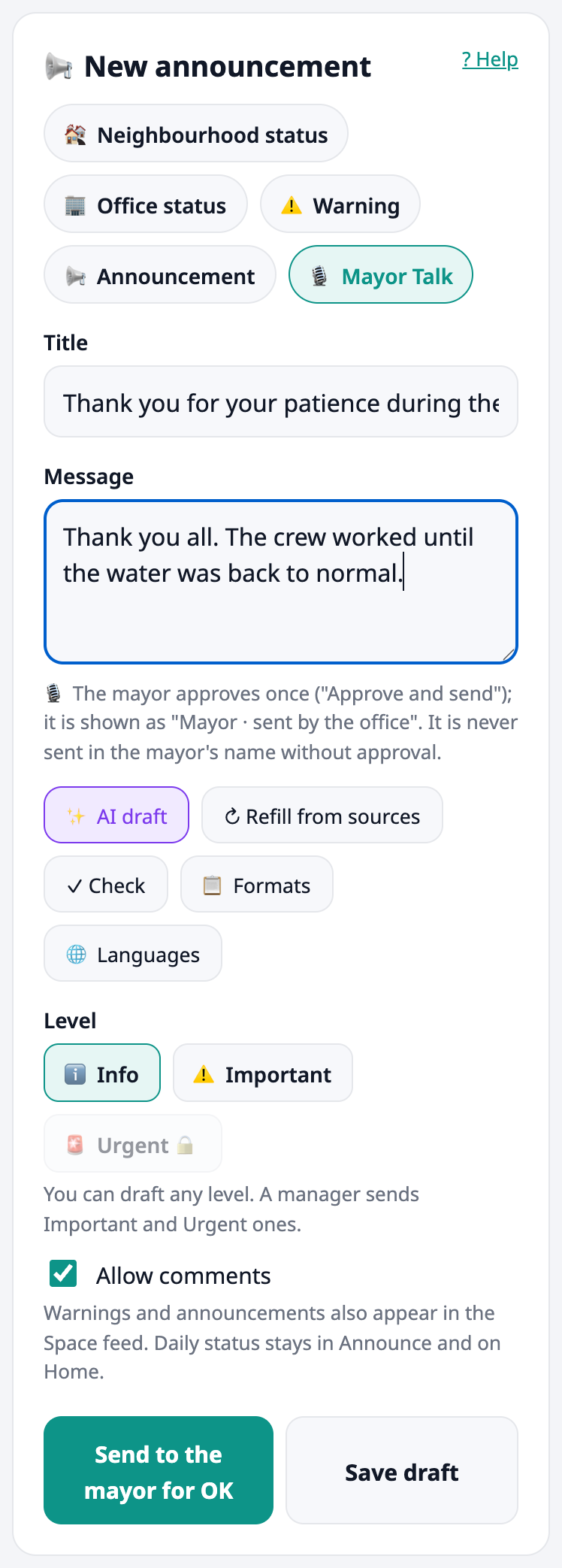
- + New announcement → 🎙 Mayor Talk. Write the title and the message.
- Press Send to the mayor for OK. The card shows Waiting for the mayor in your Drafts chip, and the mayor gets one notification.
- The mayor presses Approve and send. Only then is it public, shown as Mayor · sent by the office.
- If the mayor wants changes, Edit your draft from the ⋯ menu and send it again.
Example: prepare tomorrow's status #
The 07:00 draft is made for managers by Plaazaa. If you want to prepare a status yourself, for example for a day with road works: + New announcement → 🏘 Neighbourhood status, choose For the day (up to one day ahead), tick the lines, Save draft. A manager publishes it.
Questions #
Why can't I press Publish? Only managers publish. Press Save draft; a manager will see it.
Why is Urgent locked? An Urgent warning shows a red banner and notifies everyone, so only the owner, admins and announce managers send it. You can still draft it.
Can I edit after a manager published it? No. Tell the manager; they can edit it.
Can I see how many people read it? No, only managers see Seen and Got it counts.
Can I become a manager? A Space owner or admin gives you the announce_manager role in Team & roles.
Who can see my draft? You and the managers. Not other staff, not residents.
Something is not working #
| What you see | What to do |
|---|---|
| No + New announcement button | You need a role in the Space (for example reports staff). Ask a Space admin. |
| "Only managers can publish. Save it as a draft for them." | Press Save draft instead. |
| "Only the owner, Space admins and announce managers can send Urgent. Save it as a draft for them." | Save the draft; a manager sends it. |
| "Write a title (at least 3 letters)." | Give the warning a title. |
| "Tick or fill at least one line." | A status needs at least one line filled. |
| "That day is not allowed (up to 8 days back, 1 day ahead)." | Pick a nearer day. |
| My draft is gone | A manager published or deleted it. Check Today, Warnings and History. |