Plaazaa · 2026-10-31
📣 Plaazaa Report — Full manual (print / PDF)
Report a problem in your city with a photo and a pin, follow it until it is fixed. Staff handle it; the office gets LPA / ITA reports.
- Report a problem in your city
- Handle problem reports (staff)
- Run problem reports in your Space (managers)
- Reports for LPA / ITA (office leaders)
🙋 Members
Report a problem in your city
What it is #
Plaazaa Report lets you tell your local office about a problem — a broken street light, a pothole, flooding, rubbish — with a photo and a pin on the map. The office staff reply on the report, and you get a notification at every step until it is fixed.
- It takes about 30 seconds.
- Every report gets a number (for example
#12) so everyone talks about the same thing. - Other people in the Space can see the report and press Me too, so the office knows how many people it affects.
💡 You need to be a member of the Space to report. Open the Space and press Join first.
How to report a problem #
- Open your city's Space.
- In the post box, tap 📣 Report a problem. (On a phone it is the wide button above the icons; on the reports board there is also a + Report a problem button.)
- Fill in the form:
- Photos — 1 to 4 photos. Required. A clear photo helps staff fix it faster.
- Category — pick the closest one, for example Road, Electricity & street lights, Flooding.
- Location — tap the map where the problem is, or drag the pin. Use my location puts the pin where you stand. You can also add a place name (soi, landmark).
- Short title — for example "Street light out at Soi 5".
- Details — optional. When it started, how big it is, who it affects.
- Press Send report.
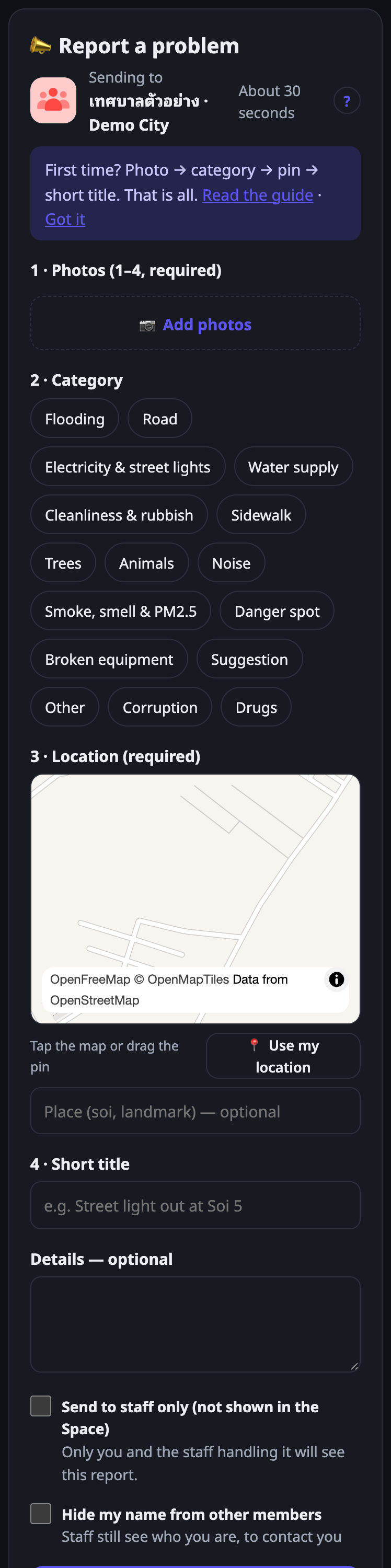
Your report appears in the Space with its number and the status Received.
💡 You can send up to 10 reports an hour. One problem = one report: if there are two different problems, send two reports.
Categories #
The Space chooses which categories it uses. The usual list follows Traffy Fondue, so it feels familiar:
| Category | For example |
|---|---|
| Flooding | water that does not drain, flooded road |
| Road | potholes, broken road surface |
| Electricity & street lights | street light out, loose cables |
| Water supply | no tap water, leaking pipe |
| Cleanliness & rubbish | full bins, rubbish not collected |
| Sidewalk | broken paving, blocked sidewalk |
| Trees | fallen branches, trees to trim |
| Animals | stray animals, snakes |
| Noise | loud noise at night |
| Smoke, smell & PM2.5 | burning, bad smells, dust |
| Danger spot | dark or risky places, dangerous crossings |
| Broken equipment | public equipment that is broken |
| Suggestion | ideas to make the city better |
| Other | anything else |
Already reported? Follow it instead #
After you pick a category and place the pin, the form checks for open reports of the same category close by (about 100 m). If it finds some, it shows them:
- Me too — follow this one — you follow that report and get its updates. No new report is made.
- It is a different problem — hides the suggestion so you can carry on with your own report.
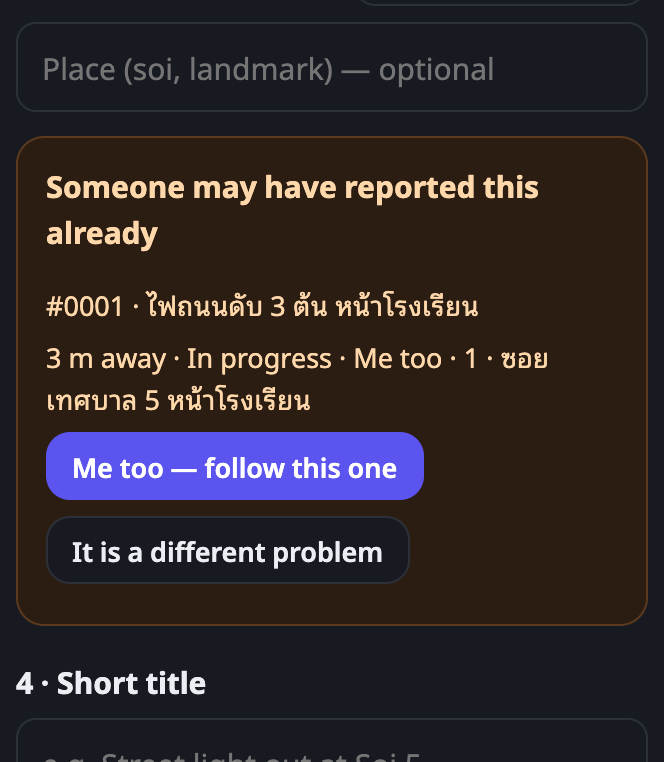
This keeps one problem in one report, so staff do not handle the same thing twice — and the "me too" count shows how many people it affects.
Hide my name #
Tick Hide my name from other members if you do not want neighbours to see who reported it. The report is then posted by a neutral account, ผู้แจ้ง (ไม่ระบุชื่อ) ("reporter, not named"), instead of you.
- Staff still see your name, so they can contact you if needed.
- You keep all your buttons (ask for an update, rate, reopen).
- Because the post is not under your name, you cannot delete it yourself — ask a Space manager. Comments on it do not notify you.
Send to staff only #
Tick Send to staff only (not shown in the Space) for problems that should not be public. Only you and the staff handling it can see the report — it does not appear in the Space, on the board or on the map.
Some categories are always staff-only, for example Corruption and Drugs (when the Space uses them). The option is then locked on.
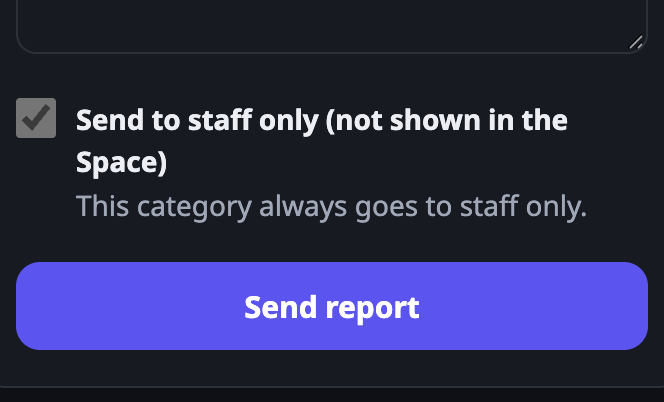
🔒 Staff-only reports are still counted in the office's statistics, but never shown with details or names.
Follow your report #
On your report card you see the status, the progress timeline with every staff update, and your buttons:
| Status | Meaning |
|---|---|
| Received | The office has the report; nobody has replied yet. |
| In progress | Staff are working on it. The card also shows the stage, for example Fixing now, Requesting budget, Procurement. |
| Forwarded | It belongs to another office (for example the electricity authority). The card shows who and how it was sent. |
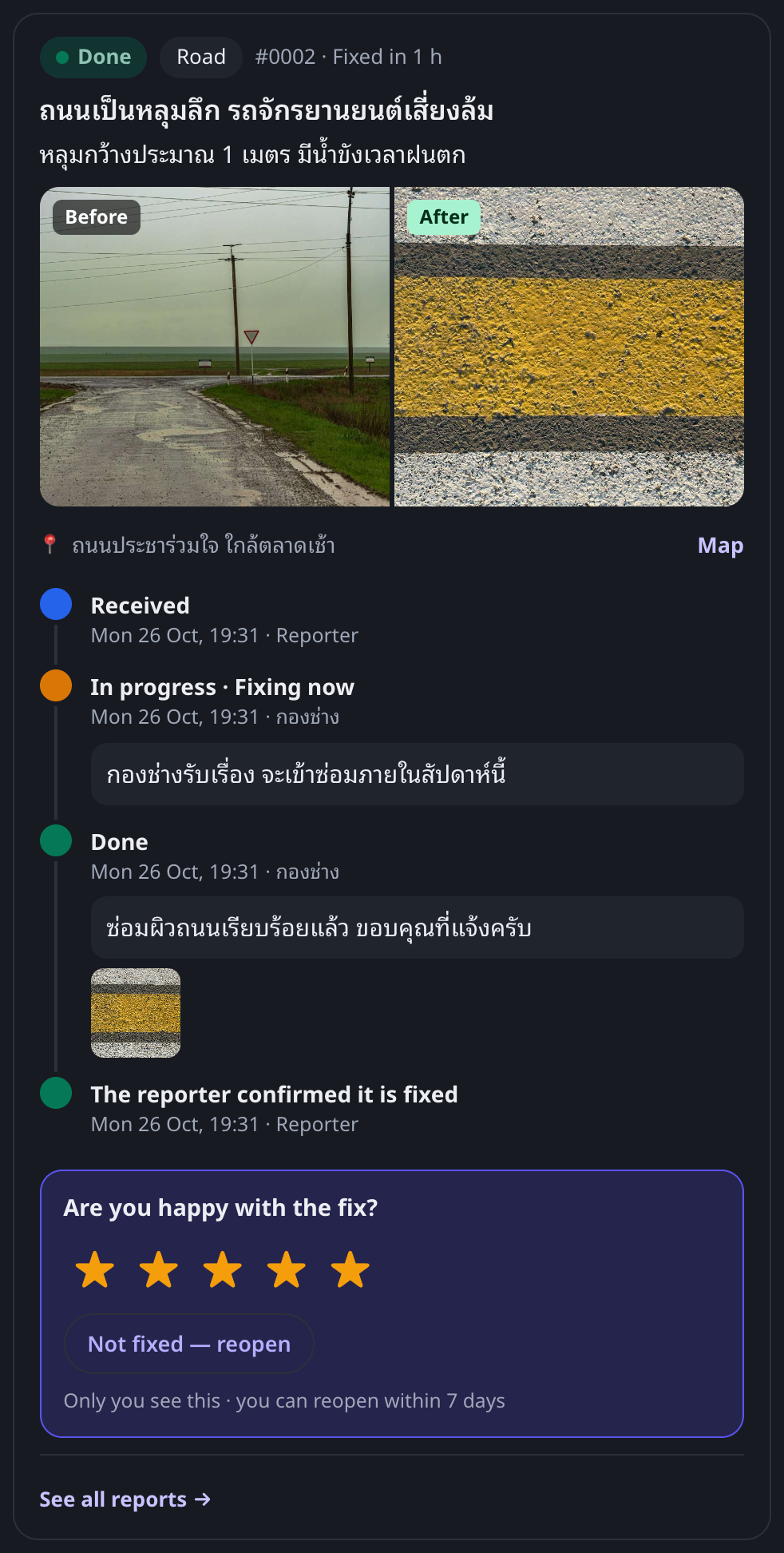
| Done | Fixed. You see Before / After photos. |
| Not relevant | Not something the office can act on — staff explain why. |
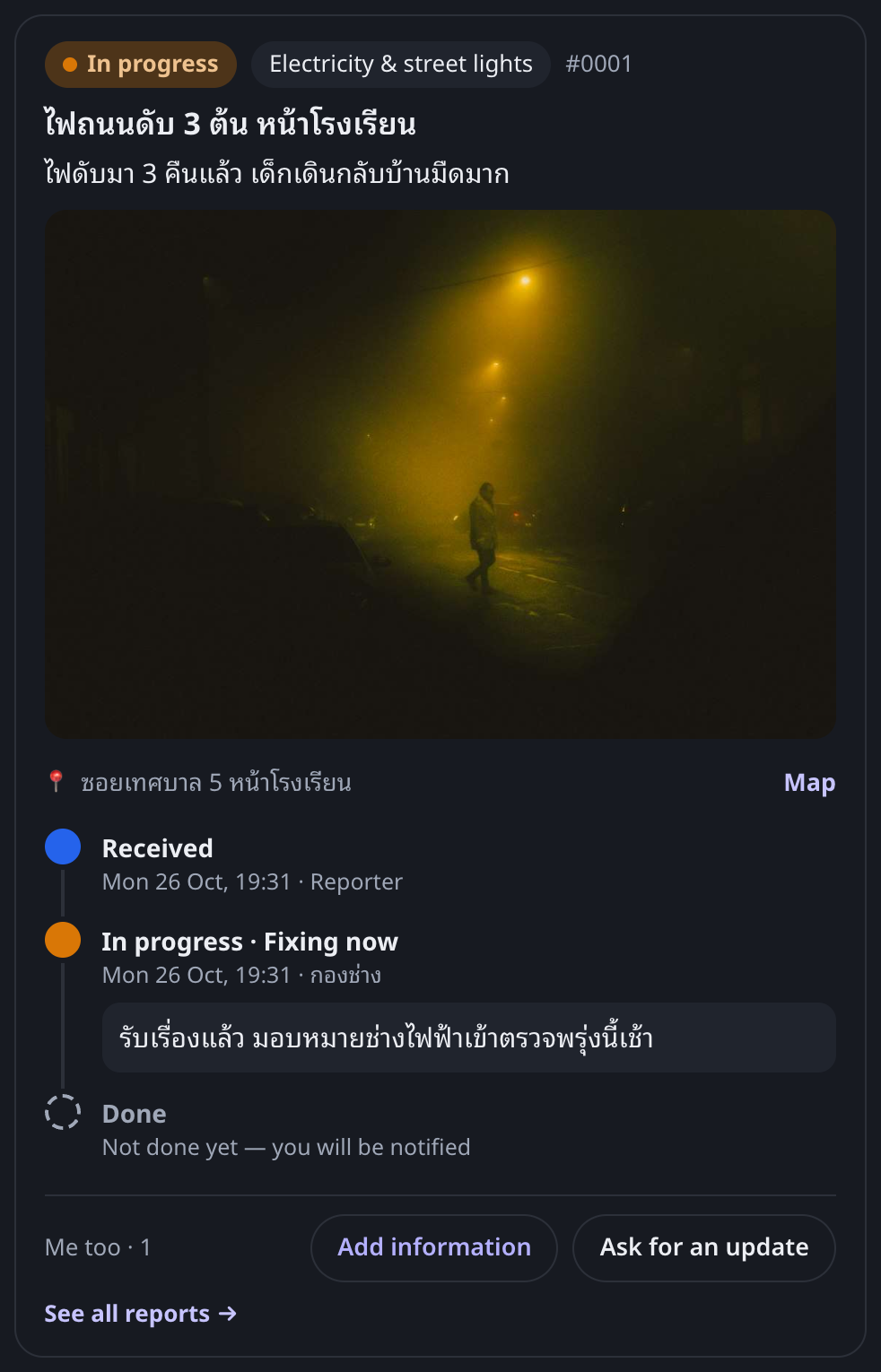
Your buttons while it is open:
- Ask for an update — reminds the staff. Once a day.
- Add information — more details or another photo.
You get a notification for every public update, in your language.
When it is done #
When staff mark the report Done, check the after photo. Then:
- Rate the fix from 1 to 5 stars.
- Confirm it is fixed — this closes the report for good.
- Not fixed — reopen — if it is not really fixed, reopen it within 7 days and say what is still wrong. It goes back to In progress.
Me too on other people's reports #
On a report someone else made, press Me too if it affects you as well. You then get its updates, and the office sees how many people are affected.
The reports board and map #
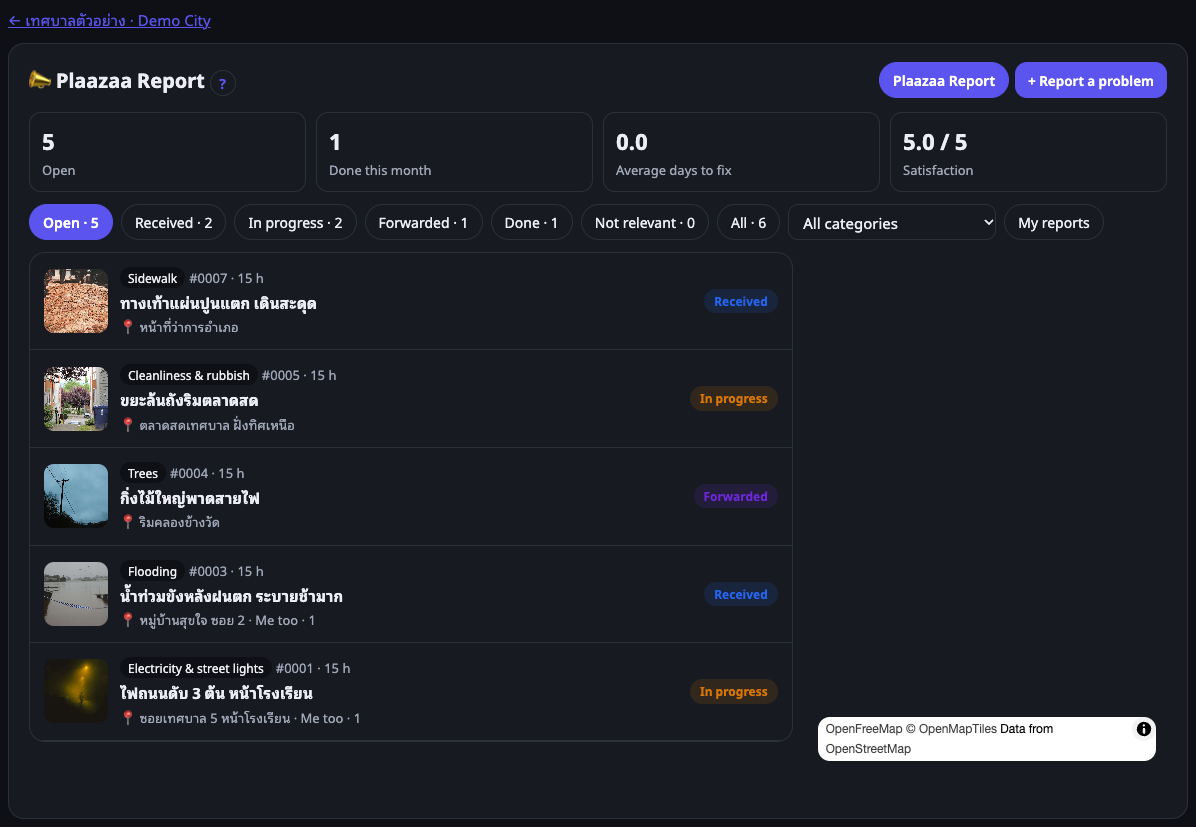
Every report card has a link See all reports. The board shows the Space's reports with:
- numbers at the top: open reports, done this month, average days to fix, satisfaction;
- filters by status and category, and My reports;
- a map with a pin per report (colour = status).
The board never shows names. Staff-only reports are not on it.
See the Space at a glance #
A Space with Plaazaa Report has tabs under its name: Feed · 📣 Report · Members · About, and a line such as "5 open reports". On the right (on a phone: above the post box) a card shows open reports, done this month, satisfaction and average days to fix.
Above the posts:
- All · 📣 Report · Posts ▾ — pick what to see. Posts shows ordinary posts; its menu narrows to Text, Photos, Videos …
- With 📣 Report: status chips (Received, In progress, Forwarded, Done, My reports) and ⊞ Group — by issue type (default), same problem, status or area.
- Views: ▤ Feed (full cards) · ☰ List · ≡ Compact (one line each) · ▦ Photos. ↕ sorts (for reports: Needs attention, Newest, Most "me too" …). Your choice is remembered.
- 🔍 searches inside what you see — for reports also by number, e.g.
#0031. - 📌 Pinned posts from the office stay on top for a few days.
Tap a row to open it next to the list (on a phone it slides up; swipe down or press Back to return).
Reports stay in their Space: they do not appear in the home feed (you see one short line per Space instead), on profiles or in Popular. A report's Share copies its link.
Who sees what #
| Members of the Space | Staff of the office | |
|---|---|---|
| Normal report | the report, photos, timeline, your name | everything |
| Hidden name | the report, without your name | everything, with your name |
| Staff only | nothing | everything |
| Staff-only notes | nothing | the note |
Questions #
Can I report without joining the Space? No — join first. It keeps reports from real people of the city.
Can I edit my report? Use Add information to add details or photos. To remove a report, delete its post (or ask a Space manager for hidden-name reports).
I got no reply. Press Ask for an update (once a day). Staff are also reminded automatically when a report has no update for 48 hours.
Is this the official channel of the office? The Space shows who runs it. In a pilot, the Plaazaa team forwards reports to the office for you.
Something is not working #
| What you see | What to do |
|---|---|
| "Join this Space first to report." | Open the Space and press Join. In some Spaces an admin approves new members. |
| "Add at least one photo." | Add 1–4 photos (JPG or PNG). |
| "Put the pin where the problem is." | Tap the map once, or press Use my location. |
| "Too many reports in the last hour" | Wait a while — the limit is 10 reports an hour. |
| The map does not load | Check your internet connection and reload the page. |
🧑🔧 Staff
Handle problem reports (staff)
Your job in one minute #
Residents report problems with a photo and a pin. You receive them, update them while you work, and close them with an after photo. Every public update is sent to the reporter at once — that is what makes residents trust the office.
- Open the Staff queue every working day.
- Reply to new reports quickly (even "received, we will check tomorrow").
- Keep the status and stage honest while you work.
- Mark Done with an after photo from the same angle.
Get started #
A Space manager gives you the role Reports staff with your department (for example Public works). Two ways:
- they add your username in Team & roles, or
- they send you a one-time invite link. Open it, sign in (Continue with IDUnify) and press Accept. The link works once, for 7 days.
You see and update reports of your department and reports assigned to you. Managers see everything.
The staff queue #
Open the Space's reports board and choose Staff queue (or the 📋 button in the Space's post box). The queue shows only reports you can update that are still open, in this order:
- reports where the reporter asked for an update,
- reports with no staff update for 48 hours,
- then the oldest first.
Filters: Assigned to me, and for managers No department yet.

Quick status from the list #
In the Space, open 📣 Report in ☰ List or ≡ Compact view. On every report you may update there is a status button:
- In progress — one tap. The reporter gets the usual notification with a short standard note.
- Forwarded… / Done… / Not relevant… — opens the Update status form with that status chosen (forward target, after photo, note). Done asks for an after photo; 📷✕ marks reports done without one.
- Select several with the tick boxes, then Set all to In progress (after a site visit, for example).
- 🔗 Same problem as… (type a number like
#0031) or ✂ Not the same problem fixes the ⊞ Group: Same problem view; ↺ Let Plaazaa decide again undoes it.
Managers also see ⚠ late reports in the group headers and in the home-feed line for their Space, and can pin up to 3 posts as 📌 Pinned (post menu ⋯ → Pin).
Update a report #
Press Update status on the card or in the queue. In the form:
- Status — Received, In progress, Forwarded, Done or Not relevant.
- Stage (when in progress) — Fixing now, Studying the problem, Making a plan, Requesting budget, Procurement, Legal process.
- Message to the reporter — required. Short and polite: what you did, what happens next, when.
- Photos — optional, up to 4. When marking Done, add an after photo.
- Public update — ticked = shown on the card and sent to the reporter. Untick for a staff-only note (see below).
- Press Save and notify.

People who pressed Me too are also notified when the report goes In progress or Done.
What each status means #
| Status | Use it when |
|---|---|
| Received | New report — nobody has replied yet. Do not leave reports here long. |
| In progress | Someone is working on it. Pick the stage so the reporter understands slow cases (budget, procurement). |
| Forwarded | It belongs to another office. Write who it went to and how (phone, LINE, official letter…). |
| Done | Fixed. Add an after photo. The reporter can rate, confirm, or reopen within 7 days. |
| Not relevant | Not a real problem, a duplicate, or outside the office's powers. Always explain why. |
Forward to another office #
Choose Forwarded, fill in Forwarded to (for example "Provincial Electricity Authority, Song Phi Nong") and How (Phone, LINE, Facebook, Official letter, Email, In person, Other). The card shows it to the reporter. Forwarded reports are not sent reminders — they are with the other office.
Staff-only notes #
Untick Public update to write a note only staff can read — for example "contractor booked for Tuesday". The status does not change and nobody is notified. Residents never see these notes.

Done: before and after #
Take the after photo from the same place and angle as the reporter's photo. The card then shows Before / After side by side — this is also the office's evidence for LPA indicator 30.
Staff-only (private) reports #
Some reports are private to the office — the reporter chose "Send to staff only", or the category is sensitive (Corruption, Drugs). They:
- are in your queue with a 🔒 Staff only chip,
- open on their own page (not in the Space feed),
- are seen only by the reporter and the staff who can update them.

🔒 Never copy, forward or talk about private reports outside the team.
Hidden-name reports #
When a reporter hides their name, members see "ผู้แจ้ง (ไม่ระบุชื่อ)". You see the real person in the line 🔒 Reporter (only staff see this) so you can contact them. Keep it private.
Reminders and notifications #
- Assigned to you — a manager assigned a report to you.
- No update for 48 hours — please check — an open report (Received or In progress) had no staff update for 48 hours. The reminder is sent once per 48 hours.
- The reporter asked for an update — the reporter pressed the button (they can once a day). Reply with a public update.
Questions #
I cannot press Update status. The report is not in your department and not assigned to you. Ask a manager to set the department or assign it.
I made a mistake in an update. Add another update that corrects it. The timeline keeps the history.
The reporter reopened the report. It goes back to In progress. Read their message, fix what is left, and mark Done again with a new photo.
🧭 Space managers
Run problem reports in your Space (managers)
Who is a manager #
Managers handle every report in the Space and set up the team. You are a manager when you are:
- the Space owner, or a Space admin (automatic), or
- given the role Reports manager in Team & roles.
| Role | Can do |
|---|---|
| Reports manager | everything: all reports, triage, assign, Team & roles, LPA / ITA summary, publish |
| Reports staff | reports of their department and reports assigned to them; the LPA / ITA summary |
| Member | report, follow, me too, rate |
In the Space's post box (tap More), managers see four buttons: 📣 Report a problem, 📋 Plaazaa Report (board), 📊 LPA / ITA summary and 👥 Team & roles.

Team & roles #
Open 👥 Team & roles. The page shows who handles reports: Space owner and admins (managers automatically), and every granted role with its department.
- Add a person: enter their username, choose the role (staff need a department) and press Add.
- Remove: press Remove on their row.
Every change is logged.

Invite staff with a link #
When you do not know someone's username, create an invite link:
- Choose the role and department, add a note (for example "Somchai, Public works").
- Press Create link and copy it now — it is shown only once.
- Send it by LINE or email. It works for one person within 7 days.
The list shows each link: waiting, used (by whom), expired or cancelled. You can cancel a waiting link.
Departments #
Add the office's departments (กอง / ฝ่าย), for example Public works, Public health, Office of the clerk. Staff belong to one department and see its reports. You can hide a department that is no longer used; old reports keep it.
Triage: give each report a department #
New reports have no department. Only managers see them first. In the Staff queue, filter No department yet, open Update status and choose the department — staff of that department then see it and get to work. You can reply to the reporter at the same time ("Received, sent to Public works").

Assign to a person #
In Update status, managers also see Assign to. The person is notified ("Assigned to you") and can update the report even if it is outside their department. They find it under Assigned to me.

Office kit: poster and staff guide #
From Team & roles, open 🧰 Office kit:
- QR poster for residents — A4, with your Space name and logo, three steps, your categories and a QR code to the Space. Put it at the office, markets and community boards.
- Staff one-page guide — A4: statuses, how to update, rules, a QR code to the staff queue.
- Full manual — this help, every guide with pictures, ready to print or save as PDF.
- A link to the resident guide to share in LINE groups or on the office Facebook page.
Print from the browser (A4) or choose "Save as PDF".

Settings the Plaazaa team sets for you #
Some settings are set when the Space is opened. Ask the Plaazaa team to change them:
| Setting | Default |
|---|---|
| Categories used in the Space | the 14 standard categories |
| Sensitive categories (Corruption, Drugs — always staff-only) | off |
| Reminder after no staff update | 48 hours |
| Reporter can reopen after Done | 7 days |
| Distance for "already reported?" | 100 m |
| Pilot line on the Space | set during a pilot |
⚠️ A Corruption category here helps residents, but ITA items o16–o18 ask for a corruption-complaint channel separate from general complaints. Keep your official channel for those.
Good habits #
- Reply to every new report within one working day, even if the fix takes longer.
- Use Forwarded honestly — say who has it now.
- Always close with an after photo.
- Look at the board's numbers each month: open reports, days to fix, satisfaction.
Questions #
A staff member left. Remove their role in Team & roles. Their past updates stay on the reports.
A report is in the wrong department. Open Update status and change the department.
Someone posted something that is not a problem. Mark it Not relevant with a reason, or delete the post if it breaks the Space's rules.
🏛 Office leaders
Reports for LPA / ITA (office leaders)
What you get #
Every Space with Plaazaa Report has a ready LPA / ITA summary for each fiscal year (1 October – 30 September, Thai year). Open it from the 📊 LPA / ITA summary button in the Space's post box, or from the reports board. Managers and staff can open it.
The report is in Thai, the way the assessors read it, and has four parts:
| Part | Matches | What is in it |
|---|---|---|
| 1 Online service statistics | ITA o10 E-SERVICE | service name and number of users per month for the whole fiscal year — no blank months |
| 2 Participation | ITA o19 | (1) topic (2) participants (3) results (4) how the results improved the work |
| 3 By category and department | office management | received, done, open, average days to fix |
| 4 Evidence | LPA area 4, indicators 30 and 33 | road, sidewalk, street light and danger-spot reports with before / after photos |

ITA o10: monthly statistics #
Part 1 counts the people who used the online service each month, October to September. Months with no reports show 0, so the table always has 12 months, as ITA asks. Download it as CSV (monthly) to attach as a spreadsheet.
ITA o19: participation #
Points (1)–(3) are filled in automatically: the topic, how many residents took part (reporters, "me too" people, ratings) and the results (done, forwarded, reopened, satisfaction).
Point (4) — how the results improved the work — must be written by the office. A manager types it in the box and presses Save. It is saved for that fiscal year. Example: "Street-light reports showed one area failing often; the office changed to monthly checks."
LPA indicators 30 and 33: evidence #
Part 4 lists reports about roads, sidewalks, electricity / street lights and danger spots, with before and after photos. This is evidence for:
- indicator 30 — repairs with before / after photos;
- indicator 33 — complaints about public lighting and danger spots, and how they were handled.
Good after photos make good evidence: ask staff to shoot from the same place and angle.
Print, PDF and CSV #
- Print / save PDF — prints on A4 with page breaks; choose "Save as PDF" to attach the file.
- CSV — monthly (part 1) or all reports (one row per report, no names). Opens in Excel with Thai text.
Publish for the office website #
ITA checks what the office shows on its own website. A manager can press Publish: anyone with the link can then view the report — no names are shown anywhere. Put the link on the office website (for example under ITA o10 / o19). Press Stop publishing to make it private again.

Limits #
- The report counts reports made in Plaazaa. Complaints by phone or letter are not in it unless staff record them here.
- Deleted reports are left out. "Not relevant" reports are shown separately.
- Staff-only reports are counted, but their details and photos never appear.
- ITA o16–o18 (corruption complaints) need a channel separate from general complaints. This tool is the general channel and does not claim those items.
Questions #
Which fiscal year is shown? The current one. Choose another year from the list at the top.
Can residents see the report? Only if a manager publishes it. Members see the reports board, which has no names.
Who wrote point (4)? A manager of the Space. It is saved per fiscal year and can be edited.